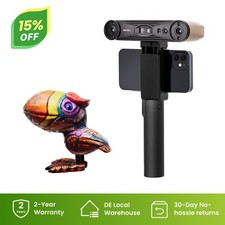
You’ve got yourself a 3D scanner and are wondering if it really lives up to the marketing hype? Spoiler: Most of the time, it doesn’t. Desktop scanners like the Raven 3D LiDAR sit in a gray area between “pretty decent” and “why didn’t I just go with photogrammetry.” The reality is this: These devices don’t meet the industrial standard of professional scanners, but they can deliver usable results — if you know what you’re doing and adjust your expectations accordingly.
The Problem in a Nutshell: When the Scanner Promises More Than It Delivers
The typical frustration starts right out of the box. You want to scan a complex object, fire up the software, and instead of a clean 3D model, you get a digital mess of holes, twisted surfaces, and artifacts. This happens because desktop scanners have physical limitations that no marketing text can gloss over. Structured Light Scanners, like many desktop models, work with projected light and cameras — this only works reliably under certain conditions.
The most common issues manifest as “infinite extension” and “twisted snake shape” — the scanner permanently loses tracking and starts recalibrating in random directions. On top of that, you’ll see holes in the mesh where the scanner couldn’t capture any data, and a resolution that often isn’t sufficient for your application. For a 150mm wide object, you’re lucky to achieve 0.15mm resolution — that sounds precise, but it’s often too coarse for fine details.
The Cause Analysis: Why Scanners Fail
Insufficient surface features are the main reason for scan problems. Smooth, monochromatic, or symmetrical objects don’t provide the scanner with reference points for tracking. The software can’t tell where it is and loses orientation. This is especially frustrating with technical components, which often have exactly these problematic characteristics.
Incorrect working distances lead to blurry or incomplete scans. Every scanner has an optimal working range — too close and the object is blurry, too far and the details get lost. Most desktop scanners are optimized for objects between 50mm and 500mm, but these specifications only hold true under lab conditions.
Problematic materials turn every scanner into a bundle of nerves. Highly reflective surfaces like polished metal or chrome scatter light chaotically. Transparent materials like glass let light pass through instead of reflecting it. Deep black surfaces absorb too much light. In all these cases, the sensor gets no usable data.
Lighting issues are often underestimated. Changing daylight, shadows, or insufficient lighting confuse the sensors. Desktop scanners need constant, diffuse lighting — ideally in a shielded area without stray light.
Too high movement speed during manual scanning leads to motion blur and tracking loss. Most makers move the scanner way too fast because they get impatient. The scanner needs time to capture each position and link it to the previous one.
The Fix — Step by Step
System preparation is the first critical step. You need Windows 10 or 11 in the 64-bit version — 32-bit won’t work. The USB port must be USB 3.0 or higher, identifiable by blue or red sockets. Always use the back of the PC; the front USB ports are often poorly connected. The installation path of the scanner software must be completely in English — German umlauts or spaces will cause crashes.
An Nvidia graphics card is practically mandatory. AMD cards are not supported by most scanner programs or run unstable. For laser scanners like the Raptor series, you even need a dedicated graphics card — integrated Intel graphics won’t cut it.
Object preparation determines success or failure. Spray reflective objects with matte scanning spray or chalk spray. This stuff can be washed off later, but you can’t skip it. For smooth, featureless surfaces, stick marker points on — small round stickers in contrasting colors. The software uses these as reference points.
Get the lighting setup right once, and you’ll save yourself a lot of frustration later. Use diffuse LED panels from multiple sides, avoiding direct light. Turn off all other light sources, especially daylight coming through windows. Some scanners have built-in fill lights — use them in low ambient light conditions.
Scanning technique requires patience. Move the scanner slowly and evenly, maintaining the optimal distance. For complex objects, scan from multiple positions — lay the object on different sides and capture each side completely. The software will stitch the individual scans together later.
Data processing is often more labor-intensive than scanning itself. Use the software’s automatic repair functions for small holes. Larger defects will need to be manually remodeled, or you’ll have to scan the object again from different angles. For converting STL to STEP for CNC processing, you’ll need reverse engineering software like Geomagic Wrap or QUICKSURFACE.
Prevention: Setup for Consistent Results
Set up a fixed scanning station instead of rebuilding it every time. A shielded area with constant lighting and a stable turntable saves time and improves results. Many pros use a lightbox or a small photo setup.
Regularly repeat calibration, especially after transport or shocks. For Bambu Lab scanners, the micro-Lidar calibration runs through the machine menu — not through Device Self-Test or Factory Reset, which don’t calibrate the Lidar.
Don’t forget to maintain the optics. Dirty lenses are the most common reason for poor scan quality. Regularly clean the sensors with a microfiber cloth and isopropanol. For Bambu scanners, dirty lenses can lead to “Laser not bright enough” errors.
Create material templates for frequently scanned object types. Document the optimal settings for different materials and object sizes. This saves time on recurring tasks.
Develop a backup strategy for scan data. Raw scan data is often several gigabytes in size, but irreplaceable if the processed model has issues. Back up both the raw data and the log files of the scanner software.
When It’s NOT This Problem
Photogrammetry issues look similar but have different causes. If your photos are blurry or have too little overlap, you’ll also get holey meshes — but the solution is completely different.
CAD reconstruction errors occur during reverse engineering, not during scanning itself. If your STL mesh looks clean but the STEP conversion fails, the problem lies in surface reconstruction.
Hardware defects show up as consistent issues regardless of the scanned object. If the scanner produces the same artifacts on all objects, it’s likely a sensor is defective or the calibration is completely off.
Slicer problems when 3D printing the scanned object are another topic. A clean mesh can still be unprintable if the wall thicknesses are too thin or internal geometries are missing.
Network issues with cloud-based scanners lead to connection drops and incomplete uploads. This has nothing to do with scan quality but rather with the internet connection or server issues from the manufacturer.